
Academy / Content & Media
How to Import From Your Vault
Your back catalog is already in your Vault. You can pull from it directly, with no downloading to your phone and uploading it all back again.
Tap upload in the Media tab and choose From Vault. Browse your Vault albums, select across as many of them as you like, then pick one CreatorLabs album as the destination. Anything you have already imported is dimmed so you cannot pull it in twice. Your platform connection has to be live for the option to work.
Until now, adding media meant your camera roll. That is fine for a shoot you did this week and painful for everything else. Most creators have years of content in their platform Vault and almost none of it still on their phone.
Why import from the Vault?
The old loop was silly. Download from the Vault, wait, upload it back, lose a bit of quality on the way. It was worst in your first week, when your AI has nothing to work with and the fastest fix is content you already own.
Now the upload button asks where you want to pull from.
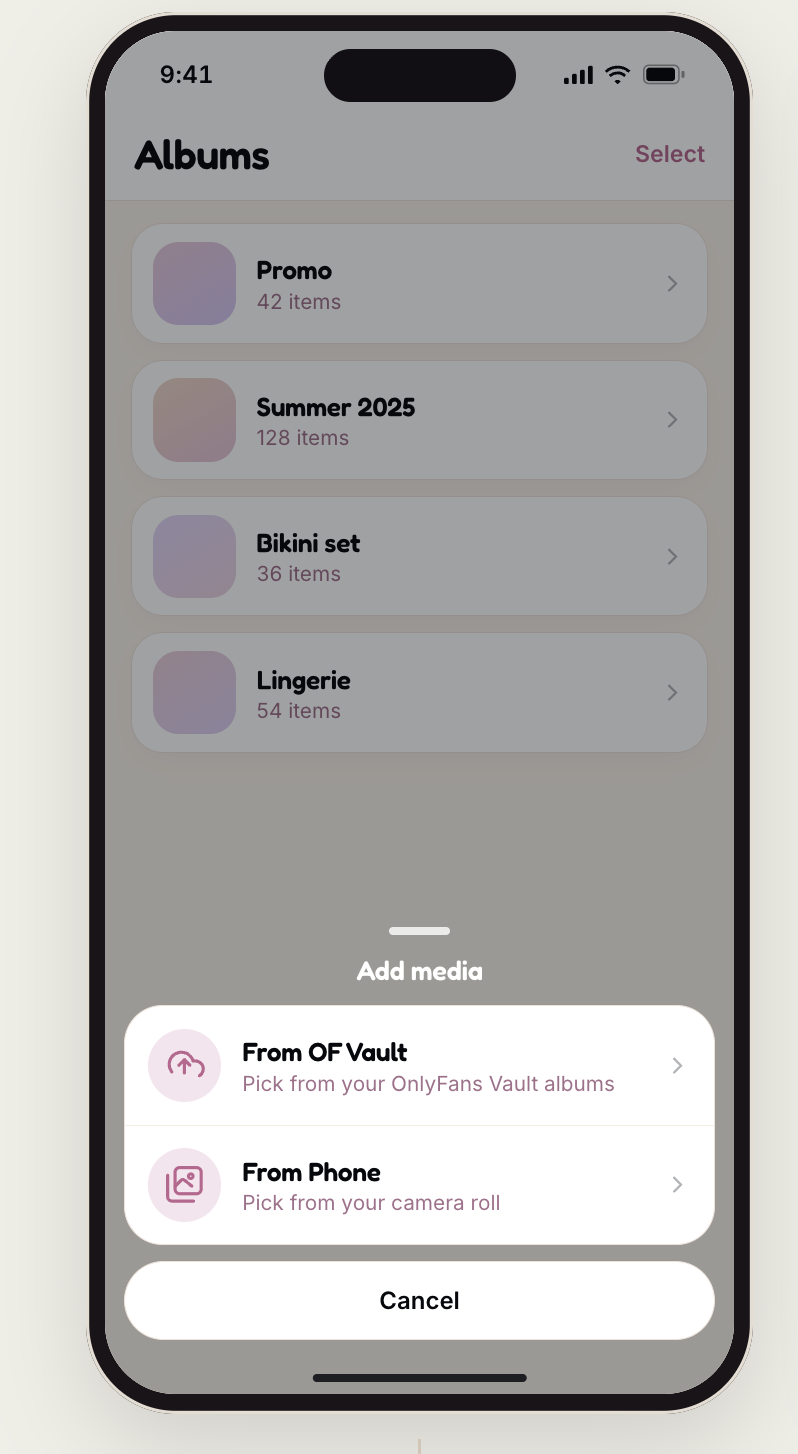
From Vault
Pick from your Vault albums. Nothing to download first.
From Phone
Your camera roll, exactly as before.
Whichever you used last is highlighted next time, so the common path stays one tap.
How do you browse your Vault?
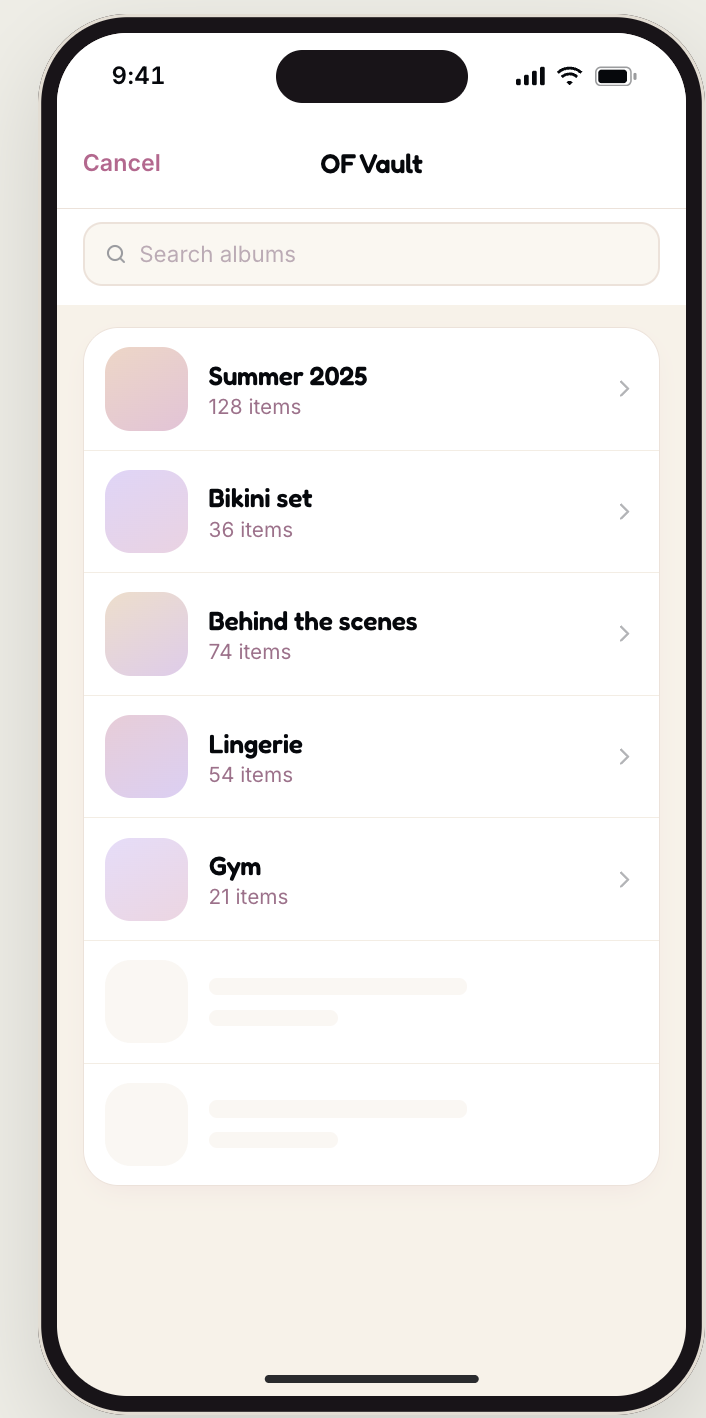
Your Vault opens the way you already think about it. Albums first, then the photos inside. There is a search box at the top if you know the album name.
Open an album and you get a familiar three column grid. Tap to select. Each pick is numbered, and that number is the order they land in. Videos show their length in the corner.
Can you pull from several albums at once?
Yes. Selections stick as you move around. Take four from Summer 2025, back out, take six more from Lingerie. The album list shows a running count next to each one, and the button at the top tracks the total.
You do not have to finish inside one album before moving on, and you do not need to repeat the whole flow per album. There is also a Select all in this album option when you want everything.
Anything you have brought over before is dimmed and marked Imported, so you cannot pull the same photo in twice. Press and hold to see which album it is already in, or turn on Show imported if you genuinely want a second copy.
Where does the content land?
The last step is picking the CreatorLabs album to import into. Your Vault's own album structure is not copied over, because the Vault is a source and not a mirror. So the one shoot, one album habit still applies.
Select across your Vault
Pick what you want from as many albums as you like.
Choose the destination album
An existing album, or a new one you create right there.
Let it run
Imported items appear in the album straight away as placeholders while they transfer. You can close the screen and it keeps going.
Once they are in, nothing is different from a phone upload. The same automatic tagging, the same free and paid choice, the same 20 item threshold before bundles start building.
Two things worth knowing
- Your platform connection has to be live. If it has expired or was never linked, the Vault option is grayed out with a Connect shortcut next to it. Reconnect and you come straight back here.
- There is a cap per batch. Very large single files and very large batches are limited. If you hit one, the app tells you at that moment rather than failing later.
A failed item is flagged individually with a retry. One bad file does not sink the batch, and you can see exactly which one it was.
The fastest first week
- Open Media and choose From Vault
- Bring over two or three of your strongest shoots
- Keep each shoot in its own album
- Mark a couple of softer items free in each album
- Check each album reaches 20 items
That is usually enough for your AI to start building bundles the same day, without you photographing anything new.
FAQ
Why is the Vault option grayed out?
Your platform connection has expired or was never linked. Use the Connect shortcut next to it, then come back to the import screen.
Does importing copy my Vault album structure?
No. You choose one CreatorLabs album as the destination. The Vault is treated as a source, not a mirror.
Can I import the same photo twice?
Not by accident. Imported items are dimmed and labeled. Turn on Show imported if you deliberately want a second copy.
Do imported items get tagged and priced?
Yes. They go through the same automatic tagging, the same free and paid choice, and the same 20 item threshold as a phone upload.
Can I close the app while it imports?
Yes. Items appear as placeholders and keep transferring in the background after you leave the screen.
Next up
Not set up yet?
Connect your page and your existing Vault content can be working for you today.
Start free